
8D complaints
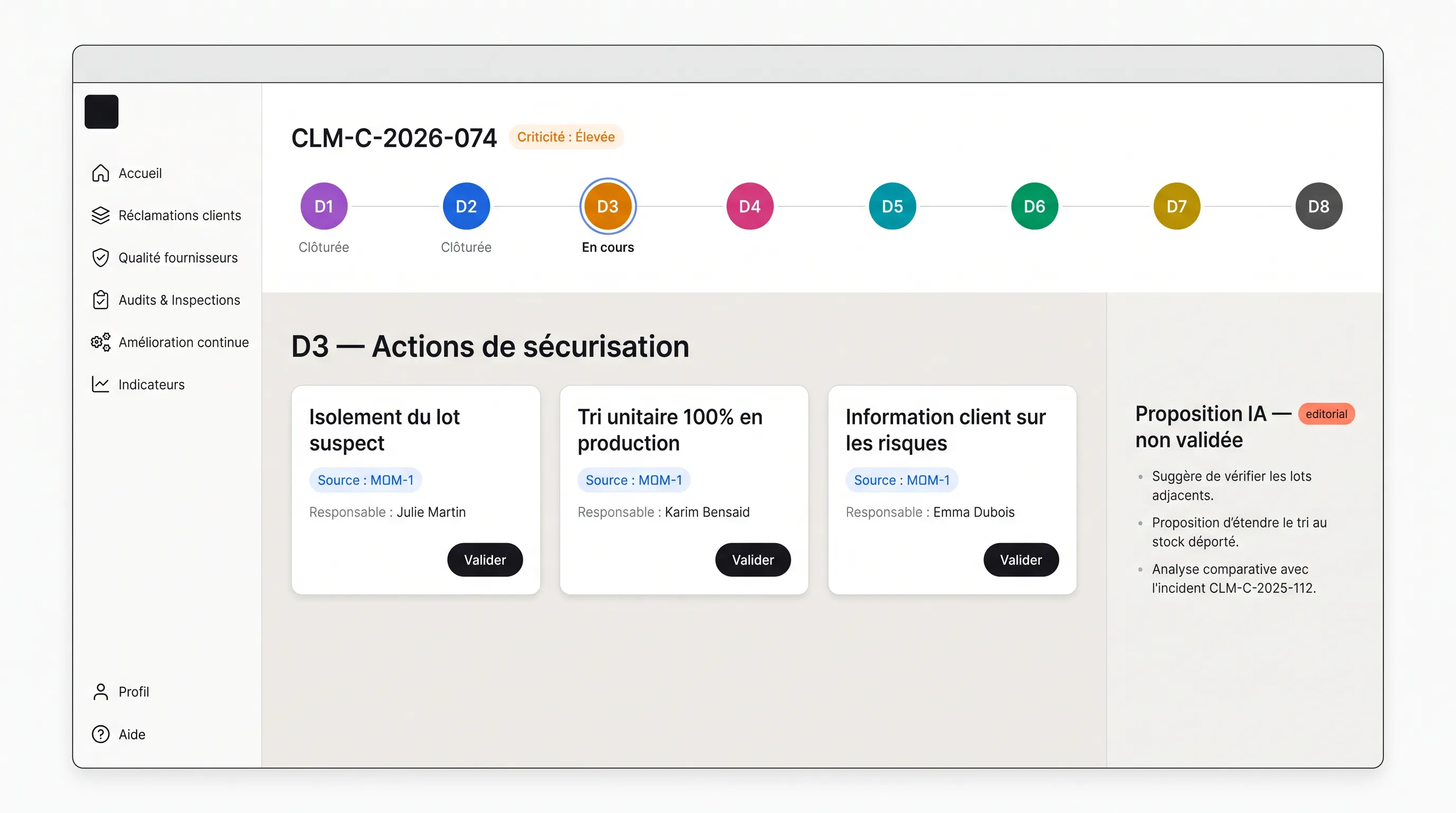
Every complaint follows the 8D method: eight disciplines, from forming the team to closure. Kanriq structures the steps, proposes their content from the case file and keeps a record of every validation.
Create a complaint
Section titled “Create a complaint”- From Customer complaints, click Complaint.
- Describe what the customer reported, then fill in the customer, the part number, the quantity affected, the defect type and the detection point.
- Set the criticality on the scale (from low to critical).
- Click Create complaint: it gets a number and the file opens on D1.
The eight steps
Section titled “The eight steps”| Step | What it establishes |
|---|---|
| D1 — Team | The people handling the file and the 8D leader. No AI: forming the team is a human decision. |
| D2 — Description | The problem in 5W2H: what, why, when, where, who, how, how many. |
| D3 — Containment | The immediate actions that protect the customer: sorting, quarantine, replacement. |
| D4 — Root causes | Why the defect occurred and why it was not detected. See Root cause analysis. |
| D5 — Corrective actions | What removes each root cause, for every future occurrence. |
| D6 — Effectiveness check | How you measure that the actions worked, and the result observed. |
| D7 — Standardisation and prevention | What is written into the site’s rules, and where else the lesson applies. |
| D8 — Closure | The summary of the file and recognition of the team. |
Let the AI propose a step
Section titled “Let the AI propose a step”In a step, click Generate AI proposal. Answers arrive one by one; each shows its source (the customer’s description, an attached document, validated meeting minutes). When the case file cannot answer, the field stays empty with the note “Not found in the case file” and what is missing.
- Regenerate reruns a single answer; an instruction (“more precise, with dimensions”) steers the new proposal.
- Nothing enters the file until you click Validate.
Close and reopen
Section titled “Close and reopen”- Once the content is validated, the leader clicks Close. Closure is an explicit act, recorded under their name.
- To correct a closed step, Reopen step asks for a justification, which stays in the file’s history.
Track actions
Section titled “Track actions”An action proposed in D3, D5, D6 or D7 is added to the site’s action plan with Add to action plan: its description is carried over, and so is its owner when the file names one. The action’s status then flows back into the file.